
Rachio Cellular Connect: Complete Setup & Review Guide
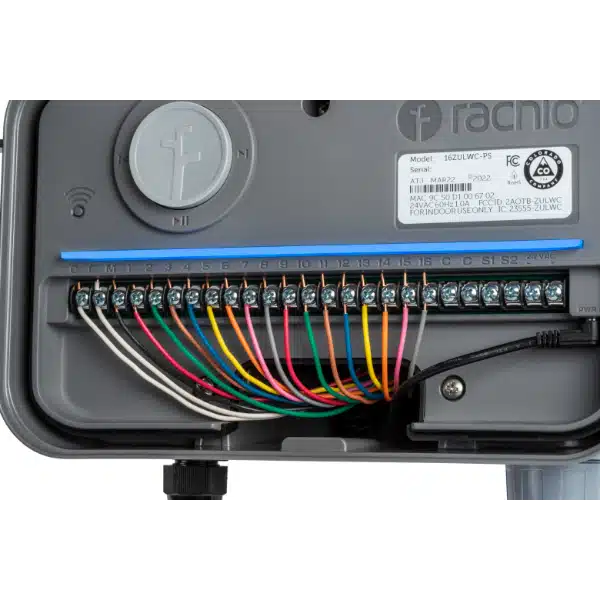
If you manage a smart sprinkler system at a vacation home, rental property, or commercial site without reliable Wi-Fi, the Rachio Cellular Connect is the accessory you have been waiting for. It gives any Rachio smart controller a dedicated cellular data connection so you can monitor and adjust your irrigation from anywhere in the world — no Wi-Fi required.
In this guide, we cover everything you need to know: what the Rachio Cellular Connect does, which controllers it works with, how to set it up step by step, and whether it is worth adding to your irrigation toolkit.
What Is the Rachio Cellular Connect?
The Rachio Cellular Connect is a small plug-and-play cellular modem designed exclusively for Rachio smart sprinkler controllers. It connects to the LTE network and provides your controller with internet access independent of any local Wi-Fi network.
Think of it as a dedicated hotspot for your irrigation controller. Once connected, you get the same full-featured Rachio app experience — scheduling, Weather Intelligence Plus, flow monitoring, zone controls, and push notifications — even at locations that have no broadband internet at all.
Key Specifications
- Connectivity: LTE Cat-M1 cellular (low-power, wide-area network)
- Data plan: Included with purchase — no separate SIM card or carrier subscription needed
- Power: Draws power directly from the Rachio controller via USB
- Dimensions: Compact form factor; mounts inside or next to your Rachio enclosure
- Subscription: Cellular service is included for the first year; annual renewal available through the Rachio app
Which Rachio Controllers Are Compatible?
The Rachio Cellular Connect works with every current Rachio smart controller, including:
- Rachio R3 Pro Series (Indoor/Outdoor) — 6, 8, and 16-zone models
- Rachio R3 Indoor Pro Series — all zone configurations
- Rachio 3 and 3e consumer-grade controllers
If you own any Rachio controller manufactured in the last few years, there is a very strong chance the Cellular Connect will work with it. Check the Rachio app or the model number on the back of your unit if you are unsure.
Why Would You Need Cellular Connectivity?
Wi-Fi is great when you have it, but several common situations make a cellular connection essential:
Remote and Vacation Properties
Properties that sit empty for months at a time often have their internet service paused or disconnected. With the Cellular Connect, your sprinkler system keeps running its smart schedule, and you keep full control from the Rachio app on your phone — no need to pay for a year-round broadband plan at a property you only visit a few times.
New Construction Sites
Landscape contractors working on new builds frequently install irrigation systems before the property has internet service provisioned. The Cellular Connect lets you commission, program, and fine-tune the system immediately rather than making a return trip after move-in.
Unreliable or Distant Wi-Fi
Controllers mounted in detached garages, pump houses, or at the far end of large properties may be outside the range of the home router. Instead of running cable or buying a Wi-Fi extender, the Cellular Connect gives you a clean, independent connection.
Commercial and Multi-Site Management
Property managers and HOAs that oversee multiple locations benefit enormously from centralized control. Every site gets its own cellular link, and you manage them all through a single Rachio app or the Pro Series dashboard.
Step-by-Step Setup Guide
Setting up the Rachio Cellular Connect takes about 10 minutes. Here is the process:
Step 1: Unbox and Inspect
Inside the box you will find the Cellular Connect module, a USB cable, and a quick-start card. Make sure everything is present and undamaged.
Step 2: Power Down the Controller
Turn off your Rachio controller or disconnect it from power. This is not strictly required, but it is a good practice when adding accessories.
Step 3: Connect the Module
Plug the USB cable into the Cellular Connect module and into the USB port on your Rachio controller. The module draws its power from this connection — no separate power adapter is needed.
Step 4: Mount the Module
If your controller is inside a Rachio Weatherproof Enclosure, you can place the Cellular Connect inside the enclosure. For indoor installations, mount it next to the controller or let it rest on a shelf. The module needs to be within reach of a cellular signal, so avoid burying it inside metal cabinets.
Step 5: Power On and Pair
Restore power to the controller. Open the Rachio app, navigate to your controller settings, and follow the on-screen prompts to detect and pair the Cellular Connect module. The LED on the module will cycle through colors during setup and turn solid when connected.
Step 6: Verify Connectivity
Run a quick zone test from the app. If the zone activates and you see real-time feedback, the cellular link is working. Check the signal strength indicator in the app — anything above two bars is sufficient for reliable operation.
Rachio Cellular Connect vs. Wi-Fi: When to Choose What
The Cellular Connect is not a replacement for Wi-Fi in every scenario. Here is a practical comparison:
- Choose Wi-Fi if your controller is within range of a strong, stable router signal and you have reliable broadband. Wi-Fi has no ongoing cost beyond your existing internet plan.
- Choose Cellular Connect if Wi-Fi is unavailable, unreliable, or too expensive to maintain at the controller location. The small annual cellular fee is far less than maintaining a broadband subscription at a remote site.
- Use both as a backup strategy: The Cellular Connect can serve as a failover if your primary Wi-Fi goes down, ensuring your controller stays online during outages.
Pricing and Subscription Details
The Rachio Cellular Connect purchase includes the hardware and the first year of cellular service. After year one, the cellular data plan renews annually at a modest fee through the Rachio app. There are no contracts, and you can pause or cancel at any time.
Compared to the cost of running a separate internet line to a remote property, the Cellular Connect subscription pays for itself many times over.
Tips for Getting the Best Cellular Signal
- Mount the module as high as practical — higher placement generally means better signal reception.
- Keep it away from large metal surfaces, electrical panels, and concrete walls that can block cellular signals.
- If signal strength is marginal, try repositioning the module a few feet in any direction. Even small moves can make a significant difference.
- The LTE Cat-M1 network has excellent building penetration, but an exterior or window-adjacent mounting location will always outperform a basement installation.
Pairing with Flow Meters and Sensors
The Cellular Connect works seamlessly alongside other Rachio accessories. If you are setting up a remote property, consider adding a wired flow meter or wireless flow meter to detect leaks while you are away. Flow data transmits over the same cellular link, giving you real-time leak alerts on your phone even when you are hundreds of miles from the property.
For whole-home water monitoring, the Flume Water Monitor is another excellent complement — it tracks total household water usage and alerts you to leaks inside the home as well.
Frequently Asked Questions
Does the Rachio Cellular Connect require a SIM card?
No. The cellular SIM is built into the module. There is nothing to activate with a carrier — you manage everything through the Rachio app.
Can I use the Cellular Connect and Wi-Fi at the same time?
Yes. When both are available, the controller will prefer Wi-Fi and use cellular as a backup. This is ideal for sites where Wi-Fi is present but occasionally drops out.
What cellular network does it use?
The Rachio Cellular Connect uses LTE Cat-M1, which is supported by major carriers in the United States and Canada. Coverage is extensive and comparable to standard LTE in most areas.
Is there a monthly fee?
The first year of cellular service is included with purchase. After that, an annual renewal fee applies. There is no monthly billing — it is one simple annual charge managed in the Rachio app.
Will it work in a metal enclosure?
Metal enclosures can reduce signal strength. If you are using the Rachio Weatherproof Enclosure (which is plastic), you will have no issues. For metal boxes, consider mounting the Cellular Connect module outside the enclosure with the USB cable routed through a knockout hole.
Can I move the Cellular Connect between controllers?
Yes. Simply unplug it from one controller, connect it to another, and re-pair it in the Rachio app. This is handy for contractors who want to use one module across multiple job sites during commissioning.
Final Verdict: Is the Rachio Cellular Connect Worth It?
If you manage irrigation at any location where Wi-Fi is absent, unreliable, or cost-prohibitive, the Rachio Cellular Connect is an easy recommendation. The plug-and-play setup, included first-year data plan, and seamless integration with the Rachio ecosystem make it one of the most practical smart irrigation accessories available.
For landscape professionals managing multiple properties through the Rachio Pro Series, the Cellular Connect is nearly essential — it guarantees you will never lose visibility or control over a client site because of a Wi-Fi issue.
Ready to add cellular connectivity to your Rachio controller? Shop the Rachio Cellular Connect at Backyard Landscape Supply and browse our full selection of smart irrigation controllers and controller accessories.
Rachio Pro vs Gen 3: Same homeowner or contractor shopper—Pro adds 4 years warranty (vs 2 on Gen 3), same price band, outdoor-ready kits, free US shipping & support, Rachio Flow wired/wireless and Cellular Connect, and live electrical monitoring in the app included on Pro (Gen 3 charges for this feature).